Table of Contents
ToggleInstalling a Ring doorbell is one of the most straightforward smart home upgrades you can tackle yourself, no electrician required for most setups. Whether you’re upgrading an existing doorbell or adding one to a door that never had one, the process takes about 30 minutes and requires only basic tools. This guide walks you through everything: what to grab before you start, how to prep your doorway, the installation steps themselves, and how to get your new doorbell talking to your WiFi and phone. We’ll also cover the gotchas that trip people up, so you won’t be the one calling for backup midway through.
Key Takeaways
- Installing a Ring doorbell takes approximately 30 minutes and requires only basic tools, making it an achievable DIY smart home upgrade for most homeowners.
- Ensure your WiFi connection is within 25 feet of your doorbell and use the 2.4 GHz band for optimal connectivity during installation.
- Power off your existing doorbell at the breaker, label your wires with painter’s tape, and clean the mounting surface thoroughly before installing the Ring doorbell to prevent corrosion and ensure a secure fit.
- Wired Ring doorbells require existing doorbell wiring (15–24 volts AC), while battery-powered and solar-powered options are ideal for renters or homes without existing doorbell circuits.
- Test your doorbell button after installation, position motion detection zones to exclude the street to reduce false alerts, and troubleshoot connectivity by moving your router closer if the WiFi signal is weak.
- If you experience no power, check your breaker and use a multimeter to test voltage at the terminal screws; overheating or burning smells require immediate power-off and professional electrician assistance.
What You’ll Need Before You Start
Tools And Materials Checklist
Before you drill a single hole, gather these essentials. You’ll need a cordless drill-driver with a small bits set, a Phillips head screwdriver, and a level to ensure the doorbell sits straight. A stud finder is helpful if you’re mounting on a frame or casing: a tape measure and pencil are non-negotiable for marking placement. For safety, grab safety glasses and work gloves, you’re handling small fasteners and possibly working at height on a ladder.
For the Ring doorbell itself, you’ll get the device, a mounting bracket, and screws in the box. Have painter’s tape handy to mark your drill points before committing. If you’re removing an old doorbell, you may need a flathead screwdriver to pry trim or escutcheons carefully. Some older doorbells have a battery inside the chime unit indoors: knowing what you’re working with prevents surprises.
Power Requirements And Compatibility
Ring doorbells come in three main flavors: wired (hardwired to your existing doorbell circuit), battery-powered (fully wireless, great for renters), and solar-powered (battery with a charging panel). Most homeowners choose wired because you never swap batteries, though this requires existing doorbell wiring, 15–24 volts AC.
If you have an old, working doorbell, you’ve got the wiring already. If not, you’ll either need a transformer installed in your breaker panel (a job for a licensed electrician in most jurisdictions) or go with a battery model. Ring’s compatibility checker on their site will tell you if your existing setup works: plug in your chime brand and it’ll confirm. A WiFi connection within 25 feet of your doorbell is critical, if your router is far away, consider a mesh WiFi setup or a dedicated extender before installation to avoid connectivity headaches.
Preparing Your Doorway For Installation
Prep work separates a solid install from a sloppy one. Start by powering off your existing doorbell at the breaker if you have one, this keeps you safe and prevents accidental triggering during removal. Test the power is off by pressing the old doorbell button: if nothing chimes, you’re good.
Unscrew and remove your old doorbell faceplate. Take a photo of the wiring before disconnecting anything, you’ll have two or three wires (usually red, green, or white). Label them with painter’s tape so you don’t mix them up. Gently pull out the old unit and set it aside.
Now, clean the mounting surface. Use a damp cloth to wipe away dirt, spider webs, and old adhesive residue. Let it dry completely, moisture under a new doorbell invites corrosion. Check that the surface is flat: if it’s not, a shim under the mounting bracket keeps things level and prevents gaps.
Hold the Ring mounting bracket against the door frame or siding and use your level to verify it’s straight. Mark the two screw holes with your pencil using painter’s tape as a guide. If you’re drilling into vinyl or composite, a ¼-inch bit is standard: wood gets the same. Concrete or brick? You’ll need masonry anchors and a carbide bit, this work is more labor-intensive, but doable. Make sure screws will hit something solid and won’t penetrate into cavities or plumbing runs behind the frame.
Step-By-Step Installation Process
1. Attach the mounting bracket. Drill your marked holes with the appropriate bit size. Insert the two screws (Ring includes them) and tighten firmly, not gorilla-tight, but snug enough that the bracket won’t wiggle. Your level should still read true: adjust if needed before final tightening.
2. Connect the wiring. For a wired doorbell, you’ll have two wires from your chime transformer. Identify them from your photo or the old doorbell. Loosen the terminal screws on the Ring doorbell’s rear, insert each wire under its corresponding screw, and tighten. If only one wire is present, your chime is likely one-wire: Ring supports this too. Polarity (positive/negative) doesn’t matter for doorbells, AC power doesn’t care.
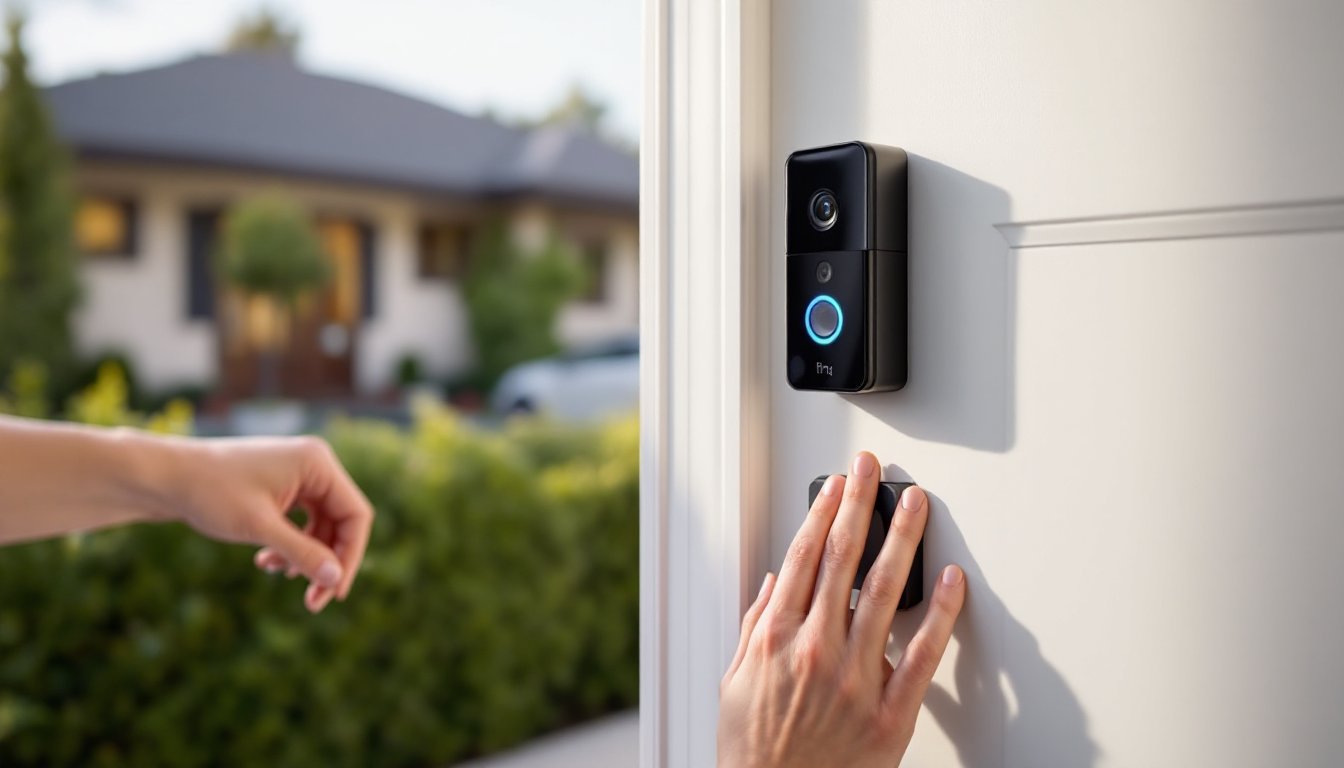
3. Secure the doorbell to the bracket. Slide the Ring doorbell onto the bracket and use the provided screw to lock it in place. The screw threads into the base, holding it firm.
4. Reinstall your chime (optional for some models). If you’re using a Ring Chime device indoors, plug it into an outlet near the center of your home for better WiFi reach. This replaces your old chime unit, or supplements it if you’re keeping the old one.
5. Test the connection. Press the doorbell button once. You should hear a sound from your chime (or the Ring Chime). If nothing happens, check that wires are tight under the terminal screws and that power is reaching the unit. A step-by-step Ring installation guide can walk you through troubleshooting if you hit a snag.
Connecting To WiFi And The Ring App
With the hardware installed, it’s time to bring your doorbell online. Download the Ring app from your phone’s app store (iOS or Android). Create or log in to your Ring account.
Open the app and tap the menu to add a new device. Select Doorbell and choose your specific Ring model (Video Doorbell Pro, Video Doorbell Plus, etc.). The app will search for your doorbell’s WiFi connection signal. Press and hold the setup button on the back of your Ring doorbell (behind the faceplate) for about 15 seconds until the light flashes, this puts the device in pairing mode.
The app will prompt you to select your WiFi network and enter your password. Use the 2.4 GHz band if your router offers both 2.4 and 5 GHz: Ring doorbells perform better on the slower, longer-range frequency. Once connected, the app will confirm and move you to final setup: naming your device, adjusting motion detection zones, and setting notification preferences.
Take a moment to position your motion detection zones, most users exclude the street and sidewalk to reduce false alerts from passing cars. Tighten privacy zones around neighboring properties if needed. Test a live view: tap the camera feed in the app and confirm you see video from your doorbell. If the video feed is blurry, clean the lens with a microfiber cloth.
Troubleshooting Common Installation Issues
No power at the doorbell. If the device won’t power on, confirm your breaker is switched on and that your old wiring is still connected. Use a multimeter set to AC voltage (if you have one) to test the voltage at the terminal screws, you should read 16–24 volts. If it’s zero, your transformer or wiring is dead. Call a licensed electrician if you suspect a circuit issue: you’re beyond DIY at that point.
WiFi won’t connect. Ensure your phone is on the same WiFi network as your doorbell. Move the router closer temporarily to test, if the doorbell connects, your signal is too weak at its location and you’ll need a WiFi extender or mesh network. Restart your router and try again. Avoid networks that require login portals (like hotel WiFi): Ring can’t authenticate through those.
Blurry or inverted video. Clean the lens with a lint-free cloth. If the image is upside-down, check the orientation setting in the app, Ring allows you to flip the image in software if you mounted it differently than expected.
Old chime still works but no new alert. You may have both the old chime and the Ring Chime running. Disable the old chime’s circuit breaker (safely and temporarily) to force visitors to use the Ring app or Ring Chime. Some users prefer keeping both for redundancy, that’s fine, just set your notification preferences in the app so you don’t double-alert.
Doorbell feels hot or smells odd. Power it off immediately at the breaker. Overheating can mean a wiring short or incompatible transformer. Inspect wires for damage and consult Ring support before powering back on. If you see scorch marks, stop and call an electrician.